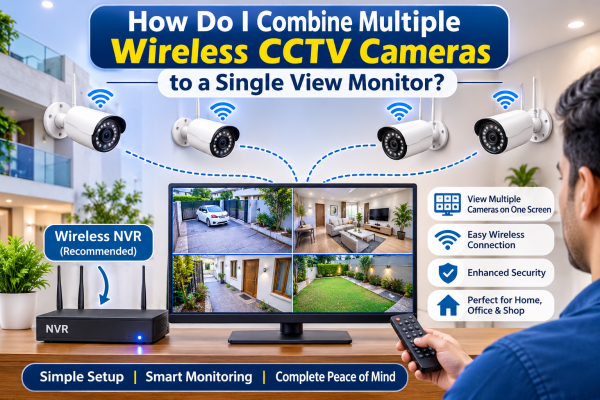
Modern security systems make it easier than ever to monitor multiple locations from a single screen. Whether you own a house, office, showroom, warehouse, or retail shop, installing several wireless CCTV cameras can improve security. It can also provide better visibility.
However, many people have one key question: Can you connect many wireless CCTV cameras to one monitor? Can you do it without using a separate screen for each camera?
Yes. You can combine camera feeds. You need a compatible Wireless NVR (Network Video Recorder). You also need a Wi‑Fi network or CCTV monitoring software. You can then view them together on one monitor.
In this article, we will explain how to connect multiple wireless CCTV cameras.
We will cover the equipment you need.
We will also help you choose the right monitoring system.
1. What Equipment Do You Need to Connect Multiple Wireless CCTV Cameras?
Before starting the installation, make sure you have the necessary equipment.
Here are the main components required:
Wireless IP Cameras: These cameras transmit video through a Wi-Fi network instead of using a dedicated video cable. Each camera generally requires a separate power source.
Wireless NVR: A Network Video Recorder receives video feeds from compatible IP cameras and manages recording and live monitoring.
Wi-Fi Router: A stable router helps connect multiple cameras and the NVR to the same network.
Monitor or LED TV: You can use a computer monitor or television to display multiple camera feeds.
HDMI or VGA Cable: This connects the NVR to your monitor, depending on the available ports.
Hard Disk Drive: If you want to save CCTV recordings, you need compatible storage installed in the NVR.
2. Connect Multiple Cameras Using a Wireless NVR
Using a compatible wireless NVR is one of the most convenient ways to manage multiple wireless CCTV cameras.
Instead of opening different mobile applications for every camera, you can add all supported cameras to one recording device.
Follow these steps:
-
Install the wireless CCTV cameras in their required locations.
-
Connect the NVR to a power supply.
-
Connect the NVR to your monitor using an HDMI or VGA cable.
-
Connect the NVR to your network if required.
-
Open the camera management section in the NVR settings.
-
Search for available wireless cameras.
-
Add and configure each camera.
-
Select the multi-screen display option.
After completing the configuration, you can monitor multiple locations simultaneously on one screen.
Important: Not every wireless camera works with every wireless NVR. Always check the supported camera models, wireless connection method, and compatibility before purchasing.
3. Connect Multiple Wi-Fi CCTV Cameras Through a Router
If you already have multiple Wi-Fi CCTV cameras, you may be able to connect them through a common wireless router.
This setup is useful when cameras support network-based monitoring.
The general process involves:
-
Connect all compatible cameras to the same Wi-Fi network.
-
Check the IP address of each camera.
-
Install compatible CCTV monitoring software on your computer.
-
Add the cameras using their supported network protocols.
-
Configure the camera layout.
-
Connect your computer to a monitor or television.
Once configured, you can see multiple live camera feeds together.
However, make sure your router can handle the combined network traffic. Too many high-resolution video streams can cause buffering and connection problems.
4. Use CCTV Software for Multi-Camera Monitoring
Another method is to use Video Management Software (VMS).
VMS allows users to manage multiple IP cameras through a centralized computer system.
It is especially useful for businesses that need to monitor several areas simultaneously.
Some important features include:
Multi-Channel Live Viewing: View 4, 8, 9, 16, or more camera feeds. The number depends on the software and computer capability.
Camera Management: Add, remove, and organize multiple cameras from one interface.
Recording Management: Record video footage when supported by the cameras and software.
Playback Facility: Review previously recorded footage.
Remote Monitoring: Access camera feeds remotely when the software and network support it.
Before selecting software, check whether it supports your camera models and their video streaming protocols.
5. How to Display 4, 8, or 16 Cameras on One Monitor
A multi-camera display allows you to monitor different areas without switching between individual camera feeds.
Depending on your NVR or monitoring software, you can select different viewing layouts.
|
Camera Setup |
Display Arrangement |
|
4 Cameras |
2 × 2 split screen |
|
8 Cameras |
8-channel layout |
|
9 Cameras |
3 × 3 split screen |
|
16 Cameras |
4 × 4 split screen |
|
32 Cameras |
Multi-channel layout, if supported |
For example, in a residential property, four cameras can monitor the main entrance, parking area, backyard, and living area.
In a commercial property, sixteen cameras can cover the reception, entrance, office area, storage room, and other important locations.
The actual number of feeds displayed simultaneously depends on the NVR's decoding capacity, display output, resolution, and software.
6. Can You Connect Wireless CCTV Cameras From Different Brands to One Monitor?
Yes, it may be possible to connect cameras from different manufacturers to one monitoring system.
However, you need to check compatibility before connecting them.
One important technology is ONVIF, which helps compatible IP cameras and recording devices communicate with each other.
Before purchasing different camera brands, check:
-
Whether the cameras support ONVIF.
-
Whether ONVIF is enabled on the devices.
-
Whether the NVR supports third-party cameras.
-
Whether the required video streaming formats are supported.
-
Whether the camera's resolution is supported by the NVR.
Keep in mind that ONVIF compatibility does not guarantee all advanced features will work across brands. This includes two-way audio and smart detection.
7. Common Problems When Connecting Multiple Wireless CCTV Cameras
Sometimes, users face technical problems while setting up multiple wireless cameras.
Here are some common issues and their solutions.
Problem 1: Camera Not Connecting to the NVR
Possible reason: The camera may not be compatible with the NVR.
Solution: Check the supported models, network settings, and connection protocol.
Problem 2: Video Keeps Buffering
Possible reason: Weak Wi-Fi signals or insufficient network bandwidth.
Solution: Improve router placement, reduce interference, or use a suitable access point.
Problem 3: Some Cameras Are Not Showing on the Monitor
Possible reason: Incorrect camera configuration or insufficient display capacity.
Solution: Check the NVR channel settings and confirm that all cameras are successfully added.
Problem 4: Different Camera Brands Are Not Working Together
Possible reason: The devices may use different communication protocols.
Solution: Check ONVIF and other supported integration options.
Problem 5: CCTV Recording Is Not Available
Possible reason: The NVR may not have a compatible hard drive or recording settings may not be configured.
Solution: Check storage installation and recording schedules.
8. Wireless CCTV Camera Installation: Important Tips
For a reliable multi-camera monitoring system, follow these installation recommendations:
-
Place cameras where they can cover important entry and exit points.
-
Avoid installing cameras too far from the Wi-Fi router.
-
Check the Wi-Fi signal strength before final installation.
-
Use a compatible NVR with sufficient channels.
-
Select a monitor with suitable screen resolution.
-
Configure recording schedules according to your requirements.
-
Secure your CCTV system with strong passwords.
-
Regularly check camera connectivity and recording status.
Proper planning can help reduce installation problems and improve the overall performance of your surveillance system.
9. Is a Wireless CCTV System Better Than a Wired CCTV System?
Both wired and wireless CCTV systems offer useful security features. The right choice depends on your installation requirements.
|
Comparison |
Wireless CCTV |
Wired CCTV |
|
Connectivity |
Wi-Fi or wireless network |
Coaxial or Ethernet cable |
|
Installation |
Flexible camera placement |
Requires cable routing |
|
Network stability |
Depends on wireless coverage |
Generally more consistent |
|
Camera power |
Usually separate power supply |
Depends on camera type |
|
Multi-camera monitoring |
Supported with compatible equipment |
Supported with compatible DVR/NVR |
|
Best use |
Locations where wireless connectivity is practical |
Permanent and larger installations |
For larger properties or locations requiring highly stable connections, a wired IP or PoE CCTV system may also be worth considering.
Conclusion
Combining many wireless CCTV cameras on one monitor is a practical way. It helps you manage your whole security system from one place.
Whether you choose a wireless NVR, a Wi-Fi router setup, or CCTV monitoring software, compatible equipment is essential. It ensures smooth operation.
A well set multi-camera system lets you watch your home, office, shop, or warehouse. You do not need separate monitors for each camera.
If you plan to install a multi-camera surveillance system, check your camera needs first. Consider network capacity, recording needs, and monitor specs before you choose the equipment.
Looking for professional CCTV camera solutions?
CCTV camera solutions for residential and commercial properties in Ghaziabad, Indirapuram, Noida, and Delhi NCR. Get the right CCTV setup for centralized monitoring, reliable recording, and improved property security.